Console commands are one of the most powerful customization tools in CS2. While the game’s default settings offer a solid base for casual play, experienced players often use commands to fine-tune their interface, controls, and training environment. For beginners, learning how to use console commands can help improve comfort, reaction time, and practice efficiency. This guide explains how to activate the developer console and introduces the most useful commands for new players looking to personalize their experience.
How to Enable the Developer Console
Before you can use console commands, you’ll need to activate the developer console from the settings menu.
Steps to Enable:
- Go to "Settings" from the main menu.
- Navigate to the "Game" tab.
- Find the setting labeled "Enable Developer Console" and turn it on.
- Press the tilde key (~) during gameplay to open the console.
Once opened, you can enter commands directly. This is where you’ll begin customizing your experience and unlocking practice tools.
Essential Console Commands for Beginners
Here are some of the most commonly used console commands that benefit new players. They help adjust visual settings, manage crosshair style, and simplify practice routines.
1. Crosshair Customization
Adjusting your crosshair helps with visibility and comfort.
- cl_crosshaircolor 5 – Changes the color (use values 0 to 5 for different presets).
- cl_crosshairsize 3 – Modifies crosshair length.
- cl_crosshairthickness 1 – Adjusts the crosshair line width.
- cl_crosshairdot 1 – Adds a dot in the center (0 = off, 1 = on).
- cl_crosshairgap -2 – Shrinks or widens the gap in the middle.
Experimenting with these settings will help you find a style that fits your playstyle and screen resolution.
2. Viewmodel and Weapon Positioning
These commands help adjust how your weapon is displayed on the screen, giving you better visibility.
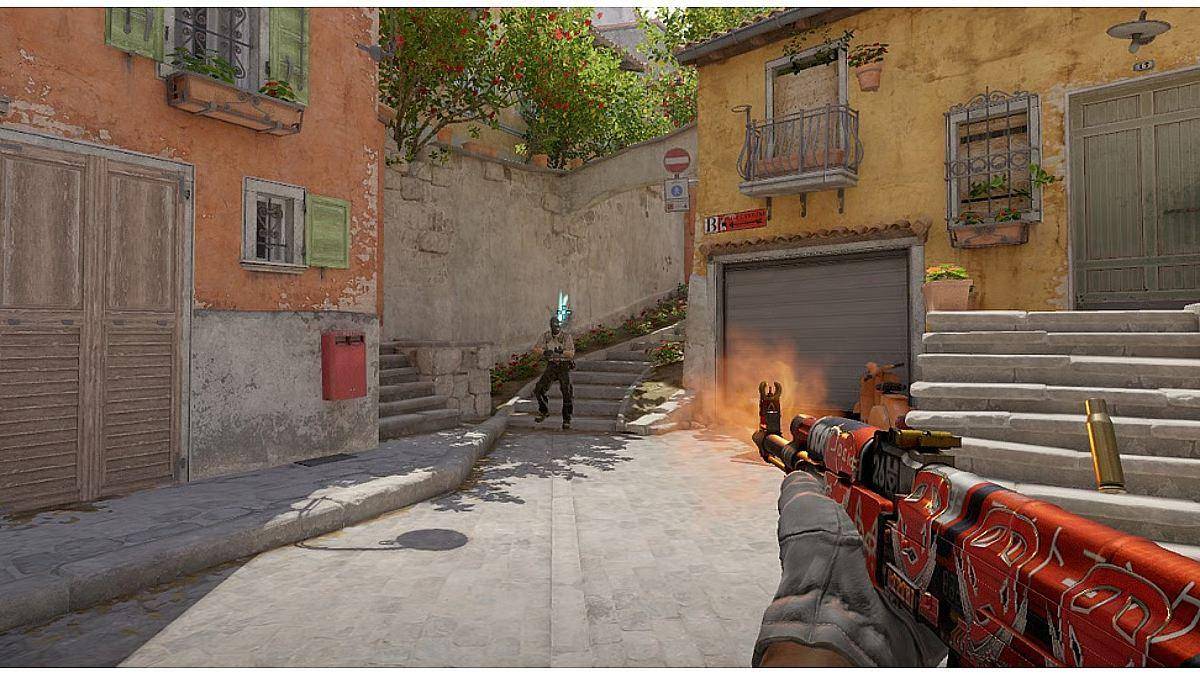
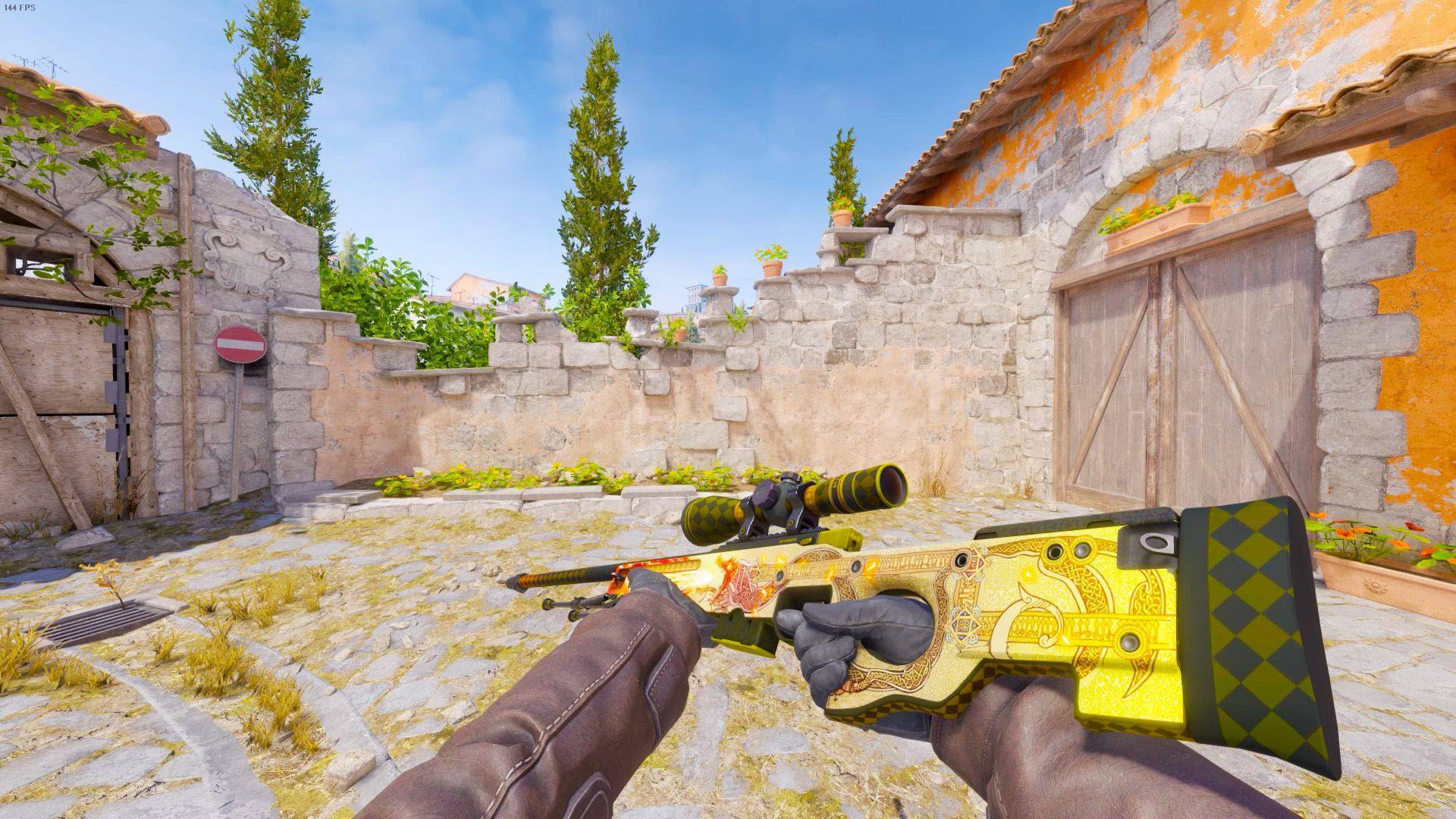
- viewmodel_fov 68 – Increases field of view for better peripheral awareness.
- viewmodel_offset_x 2.5 – Moves weapon horizontally.
- viewmodel_offset_y 2 – Moves weapon forward/backward.
- viewmodel_offset_z -1.5 – Adjusts weapon height.
These changes are especially useful for keeping your weapon from blocking enemies or important parts of the map.
Training Commands to Practice Efficiently
For those looking to train without restrictions, a few console commands can create a practice-friendly environment.
1. Unlimited Ammo and Time
- sv_cheats 1 – Enables cheat commands (only in private matches).
- sv_infinite_ammo 1 – Gives unlimited ammunition.
- mp_roundtime_defuse 60 – Extends round time to allow long practice sessions.
- mp_restartgame 1 – Restarts the match quickly.
- mp_freezetime 0 – Removes time delay at round start.
2. Grenade Practice
Learning grenade throws is essential, and these commands make it easier.
- sv_grenade_trajectory 1 – Shows grenade path.
- sv_grenade_trajectory_time 10 – Controls how long the path is visible.
- sv_rethrow_last_grenade – Repeats your last throw automatically.
Use these in custom matches to learn smokes, flashes, and molotovs on different maps.
Movement and Feedback Tweaks
These commands adjust how movement feels and how feedback is displayed on-screen.
- net_graph 1 – Displays FPS and connection info.
- cl_showpos 1 – Shows player position and velocity (great for jump training).
- fps_max 0 – Unlocks framerate limit for smoother gameplay.
- cl_radar_scale 0.3 – Shrinks the radar for a wider view.
Such feedback helps new players understand performance and track their own improvement.
Save Your Config for Convenience
After finding your favorite settings, you can save them in a config file for easy application in every match.
How to Save:
- Open the console.
- Type: host_writeconfig myconfig
- Your settings will now be saved as "myconfig.cfg" and can be loaded anytime with exec myconfig.
This ensures your preferences are never lost between matches or after updates.
Visual Customization and Inventory Setup
While console commands allow deep customization of game performance and visuals, appearance also matters for player identity. Many players use cosmetic items to personalize their inventory and stand out. Platforms like SkinsMonkey offer a way to refresh your inventory and showcase unique styles, matching your gameplay with visual flair.
Conclusion: Customize for Comfort and Control
Console commands in CS2 are not just for advanced players. Even beginners can benefit from personalizing their setup to improve visibility, practice more effectively, and gain a deeper understanding of the game. The more you tailor the game to your preferences, the more confident and comfortable you’ll feel in every round. Start simple, experiment often, and use these tools to grow into a stronger, more prepared player.